No file uploads

Crop & resize images

1. Add photos and select one to edit2. Set crop and output dimensions3. Process and check size and appearance

Choose an area and exact pixel size

Examples and limitations

Image converter

Free · processed on your device
View support & file limits
Check before convertingNo files selected

    Drop your files here

    Or choose files using the button below.

    JPG, PNG, WebP, HEIC, GIF, TIFF and more
    30 MB per file, up to 20
    No file handy?

    Crop & resize images

    Crop & resize images — Choose an area and exact pixel size

    Supported input: .jpg · .jpeg · .jfif · .png · .apng · .webp · .gif · .bmp · .tif · .tiff · .ico · .heic · .heif · .avif · .svg · Saved output: PNG · JPG · WebP · GIF · BMP · TIFF · ICO

    1. Add photos and select one to edit
    2. Set crop and output dimensions
    3. Process and check size and appearance

    Usage example

    Example input
    photo.png · 4000×3000 px
    Output width (px)
    1200
    Output height (px)
    Leave blank
    Output format
    PNG
    Expected result
    PNG · 1200×900 px

    Examples are illustrative. Actual results depend on the source file and settings.

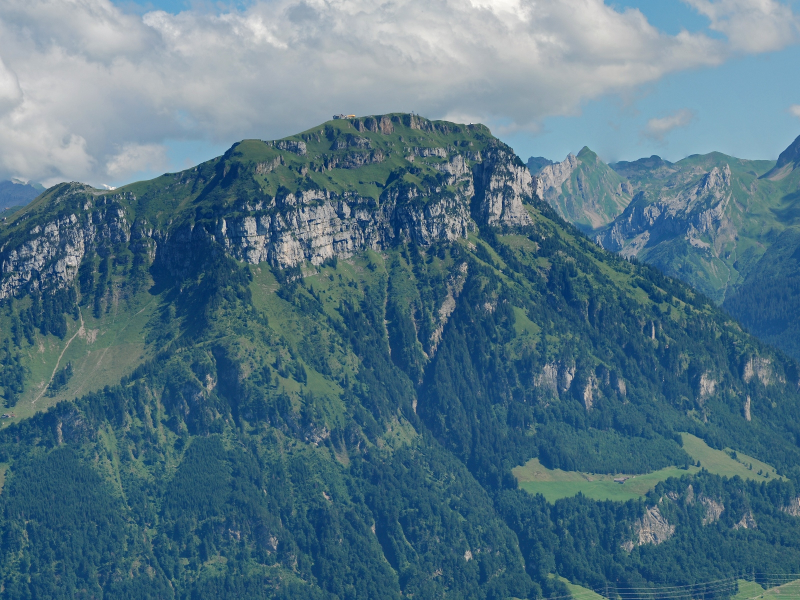
    A real result with width set to 800 px

    Only width was set to 800 px; height was left blank. The shared image renderer produced this 800 × 600 PNG. Resizing pixels differs from compressing file size; other photos will have different file sizes.
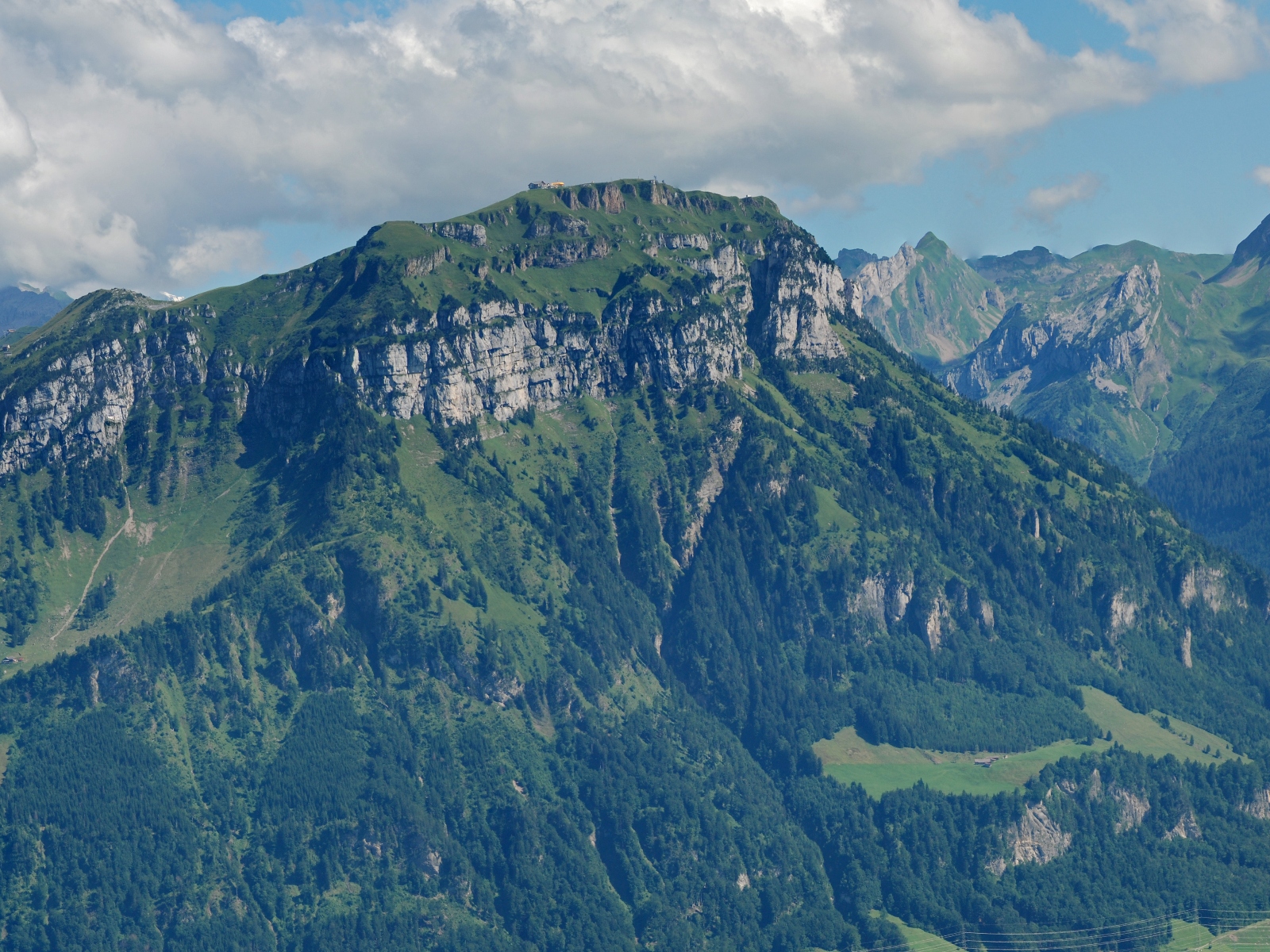
    Source · 1600 × 1200 px
    Source · 1600 × 1200 px · 1154289 B
    Result · 800 × 600 px
    Result · 800 × 600 px · 960312 B
    Source · landscape-source.jpg · Result · landscape-800px.png ·

    Width 800 px · height blank · ratio retained · PNG

    Resized copy · source retained

    Hannes Röst · Fronalpstock · CC BY-SA 3.0 · Wikimedia Commons

    When the result is not what you expected

    The photo is stretched or has borders
    Enter width only and leave height blank to keep the ratio. Setting both dimensions can add borders or stretch the image, depending on the fit mode. Crop to the required ratio first and inspect the saved result.
    A larger image is not sharper
    Adding pixels cannot recover missing detail. Use the largest suitable source and inspect the result at actual size.
    Guides and examples
    Examples and limitations

    Enter only width or height to preserve aspect ratio, for example width 1200 px. Enlarging does not restore detail.

    Input and output

    Supported input
    .jpg · .jpeg · .jfif · .png · .apng · .webp · .gif · .bmp · .tif · .tiff · .ico · .heic · .heif · .avif · .svg
    Saved output
    PNG · JPG · WebP · GIF · BMP · TIFF · ICO
    Maximum size per file
    30 MiB
    Maximum file count
    20
    Total selected size
    200 MiB
    Output width (px)
    1–8192
    Output height (px)
    1–8192

    Limits and checks

    • Maximum 40 MP. HEIC/HEIF/AVIF/SVG are input-only. RAW and PSD are unsupported.
    • GIF/APNG/TIFF use only the first frame. Metadata and original color profiles are not retained.
    • Some images cannot be decoded depending on format and browser.

    How do I crop an image to an exact pixel size?

    Cropping selects the area to keep; resizing sets the output pixel dimensions. Enter width 1200 and leave height empty to turn a 4000×3000 px photo into 1200×900 px. For a 1200×1200 px square, first crop to a 1:1 ratio, then set both output dimensions to 1200. When crop and output ratios differ, preserve-ratio mode can add padding; stretch mode distorts the image.

    Check the output dimensions and padding in the preview before saving. Each entered dimension must be 1–8192 px, with output within 40 MP; processing happens in your browser. Pixel dimensions do not guarantee a file-size limit such as 100 KB. Use image compression on the saved photo when you need to meet a KB limit. Enlarging does not recover lost detail.

    Use one audio segment or up to 10 video segments. Decimal seconds are supported. Leave the end blank for the rest of the file. Video clips are saved separately.

    Fast cuts follow keyframe or audio-packet boundaries and may shift in position and duration. Accurate cuts use frame or sample boundaries. Re-encoding changes quality and uses more CPU.

    Volume and fades require accurate processing. Volume above 100% may distort the sound.

    The first video track is copied without re-encoding. Original audio, subtitles and chapters are removed. New audio starts at the beginning and is trimmed or silence-padded to match the video. Reinspect after changing files.

    Images become PDF pages in list order. Only the first frame is used. Metadata and original compression are not preserved. Up to 20 images, 30 MB each, 100 MB total, 40 MP per image and 100 MP total.

    Guides & site information

    Image formats and editing

    Choose files and an output format. JPG suits photos; PNG and WebP support transparency. JPG and WebP are lossy; PNG metadata preservation is not guaranteed. Crop coordinates refer to original pixels. Review the before/after comparison.

    Media processing and size estimates

    Preserve mode copies codecs into compatible containers. Compatible conversion, accurate cuts and audio effects re-encode. Fast cuts may shift at keyframes or packets. Size estimates are approximate; content-dependent video, FLAC, images and documents have no reliable advance estimate.

    HWP and PDF support

    HWP 5.x and HWPX are supported. By default, missing original fonts block PDF conversion. HWP PDF output is a 192 dpi image PDF without searchable text. Existing PDF editing copies pages but does not preserve bookmarks, signatures, attachments or interactive forms. Image PDFs embed image pixels.

    Privacy information

    Selected files and connected fonts are processed on your device, without uploading them to a server. Settings, language and temporary work data are stored in the browser and can be removed by clearing site data. Conversion engines and automatic-caption models are downloaded. See the privacy and advertising/cookie pages for connection and cookie information about external services and the Coupang banner shown on South Korean connections.

    Archive tools write large results to temporary storage on your device. Originals are never uploaded. Clear results or select new files to remove temporary outputs. Interrupted tabs may leave data; abandoned jobs older than a day are cleaned during subsequent use. Clear this Site’s browser storage to remove it immediately.

    Troubleshooting and contact

    For errors, privacy, and copyright inquiries, please send them to admin@infohubs.net. Provide the tool name, error message, and browser information, but exclude file names, file contents, and personal information.

    FIND YOUR FORMAT

    Find your format

    Outputs: 7 image, 6 video and 9 audio formats, plus PDF/HWP/HWPX documents. Document conversion inputs are HWP 5.x and HWPX. HEIC, AVIF and SVG are image inputs only. Animated or multipage images use the first frame. Codec support varies. RAW, PSD and DRM are unsupported.

    Your files stay on your device.

    Processing happens in your browser. Files are neither uploaded nor stored on a server.
    Engines download on first use. The document engine is about 12 MB.

    PRIVATE
    BY DESIGN.
    A LITTLE HELP

    Questions?

    A few things to know before you start.

    Can I convert HWP, Word and PDF documents?

    Convert HWP 5.x/HWPX to PDF and between HWP/HWPX. Font checks, page previews and content-loss checks apply. PDF output is rasterized at 192 dpi, with no searchable/selectable text. Exact layout fidelity is not guaranteed. HWP conversion does not accept Word, DOCX or PDF input. Use PDF page editing to merge, extract, rotate or delete pages of existing PDFs.

    Are settings or recent tool records saved?

    Favorites, recently used tool IDs, language and explicitly saved settings are kept in this browser. Selected file contents and entered document text are not stored. Large archive results may remain in device temporary storage; clear results in the archive tool to remove them.

    How do I convert a file?

    Choose a task from All tools and add files. Review settings and limits, then start processing. Download completed files individually or as a ZIP.

    Are there file size or count limits?

    The main converter accepts up to 20 files / 200 MB total: images 30 MB, video 150 MB, audio 100 MB, documents 10 MB / 100 pages each. Separate archive, HEX, photo and PDF tools follow the limits shown on their own screens. Start with small jobs on a desktop for large files.

    Do you support every media format?

    Common formats are supported, but not every format. HEIC is input-only. AVIF needs browser decoding support. SVG can be rasterized; bitmap-to-vector conversion is not provided. Camera RAW, PSD, DRM and some special codecs are unsupported.

    Can I crop and resize an image?

    Choose Crop & resize. Drag an area or enter X/Y/width/height in original pixels. Enter both output dimensions for an exact canvas, or one to calculate the other proportionally. Keep aspect ratio adds transparent padding for PNG/WebP or the chosen background for JPG/BMP. Crops are individual per image. Upscaling does not restore detail.

    Can I trim videos at specific times?

    Choose Trim a video and enter decimal start/end seconds. Leave the end blank for the remainder. Fast cuts preserve codecs but may shift to keyframes. Accurate cuts re-encode at frame boundaries, consuming more CPU/battery and potentially changing quality. Originals are unchanged. The 150 MB limit applies to the full input regardless of cut length.

    Why does video conversion take time?

    Video is processed on your device. On first use, the engine is downloaded; its decompressed size is about 32 MB. Higher resolutions take longer; lowering resolution reduces work. Short clips are recommended on mobile.

    Will my original file or quality change?

    Original files are unchanged. Same format and default settings can return the original bytes. Media defaults to copying codecs when compatible. Opting into re-encoding may change quality and tracks. Image format changes may alter metadata, transparency, frames and colors. Review notices first. A lossless output cannot recover quality already lost.